
🔍 Read the full analysis: Can A Thunderbolt Dock Make Your Desk More Capable? on ThorstenMeyerAI.com

Get everyday essentials delivered free with Prime
- Fast, free delivery on millions of items
- Prime Video, Amazon Music and more included
- Member-only deals all year
TL;DR
A buying guide from ThorstenMeyerAI.com ranks six Thunderbolt docks, led by Anker’s Thunderbolt 5 Prime 14-in-1, and compares five Thunderbolt 4 alternatives. The guide says buyers should check their computer’s port, monitor limits and charging needs rather than choosing by port count alone.
ThorstenMeyerAI.com has published a buying guide comparing six Thunderbolt docking stations, ranking the Anker Prime 14-in-1 Thunderbolt 5 Dock first and weighing it against five Thunderbolt 4 models from Plugable and Dell. The practical takeaway is that a dock’s usefulness depends on whether its charging, monitor support and connection type match the specific computer—not simply on how many ports it lists.
The guide recommends the Anker Prime 14-in-1 Thunderbolt 5 Dock for buyers seeking newer-generation bandwidth and a broad selection of connections. It frames Thunderbolt 5 headroom as a reason to consider the model, while cautioning that a computer must support the relevant connection for its owner to benefit. The source does not provide benchmark results or a price comparison to quantify the practical advantage over the other docks.
Among the Thunderbolt 4 options, the guide describes the Plugable TBT-UDM as a cross-platform choice and the Dell Pro SD25TB4 as a current Dell-oriented option. A second Plugable model is presented for buyers who prioritize 100W charging and dual-monitor use. Those are descriptions of intended fit in the guide; actual display and charging performance can depend on the connected computer and configuration.
The two related Dell models, WD19TB and WD19TBS, differ in the power configuration described by the source: the WD19TB is listed with a 180W adapter, while the WD19TBS is associated with 130W Power Delivery. The guide advises checking the laptop’s power requirements rather than treating the model names or figures as interchangeable. The source does not provide a full model-by-model port inventory or testing results.
The 6 picks
- 1
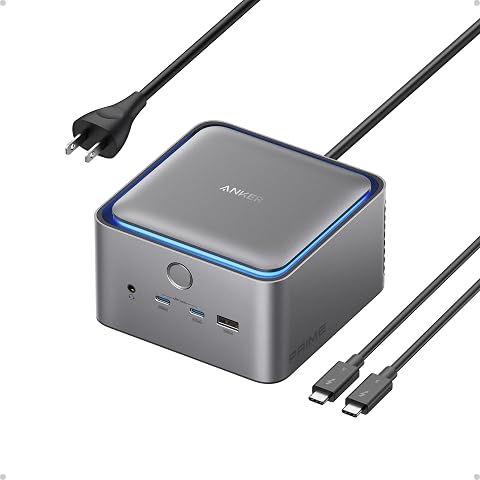 Anker Prime 14-in-1 Thunderbolt 5 Docking StationView on Amazon →
- 2
 Dell Pro Thunderbolt 4 Smart Dock SD25TB4 – USB-C Station 130W, 4 Displays 4K…View on Amazon →
- 3
 Plugable Thunderbolt 4 Dock with 100W Charging, Dual MonitorView on Amazon →
- 4
 Plugable Thunderbolt 4 Dock (TBT-UDM) for Mac and WindowsView on Amazon →
- 5
 Dell WD19TB Thunderbolt Docking Station with 180W AC AdapterView on Amazon →
- 6
 Dell Thunderbolt Dock WD19TBS with 130W Power DeliveryView on Amazon →
Match the Dock to Your Laptop
A dock can reduce the number of separate connections needed at a desk, but a mismatch can leave a buyer paying for features the computer cannot use. Thunderbolt generation, charging output and external-display limits all affect whether a particular model fits a setup. The guide’s comparison is useful chiefly as a way to narrow choices by those needs, rather than as evidence that one dock will work best for every user.
Display claims deserve particular care. A dock’s supported connections do not by themselves establish that a laptop can drive every connected screen at the desired resolution or refresh rate. The computer’s hardware, operating system, available display outputs and adapters can all affect the result. Buyers who depend on two or more external monitors should verify the exact configuration for their own system before purchasing.
Charging figures also need interpretation. An adapter’s rating and the power delivered to a laptop are not necessarily the same specification. For a lower-power computer, a dock rated for 100W may be sufficient; a more demanding machine may need a different supply or charge more slowly under load. Checking the laptop maker’s stated power needs can help avoid replacing a charger with a dock that does not meet the use case.
Products Worth Considering

Apple MacBook Air 13-inch Laptop with M5 Chip, 16GB Memory, 512GB SSD, and 12MP Center Stage Camera – Midnight
Bose QuietComfort Ultra Earbuds (2nd Gen), Wireless Noise-Cancelling Earbuds, Black

Anker SOLIX C1000 Gen 2 Portable Power Station with 200W Solar Panel
As an affiliate, we earn on qualifying purchases.
Six Models, Two Thunderbolt Generations
The source groups the six docks around a clear choice: one Thunderbolt 5 model and five Thunderbolt 4 models. It ranks the Anker first for its newer-generation positioning and connection range, while placing Plugable and Dell models in more specific roles. This is a product-selection comparison, not a report of a newly announced product launch or independent laboratory test.
Its stated selection criteria include generation and host compatibility, charging capability, display support, port variety and the clarity of each model’s intended use. The guide also distinguishes the Dell WD19TB and WD19TBS by their listed power configurations, and treats the two Plugable options as serving different priorities. It does not state a testing methodology with measured performance results, prices, or a common set of benchmark conditions.
The central buying check is to start with the computer and desk setup. Confirm that the computer’s USB-C-shaped port actually supports the relevant Thunderbolt standard, check the operating-system and model compatibility, and list the monitors and peripherals that will be connected at the same time. That approach is more informative than comparing connector totals in isolation.
“A dock’s port count alone does not guarantee that every screen or peripheral will work as expected.”
— ThorstenMeyerAI.com buying guide
Compatibility Depends on the Host
The supplied guide does not give the publication date, prices, a complete port-by-port specification for every model, or measured results from comparative testing. It also does not identify specific laptop models and operating-system versions for which each dock’s display modes have been verified. Its rankings should therefore be read as the source’s buying recommendations, not as a guarantee of performance across all computers.
It remains unclear from the source which monitor resolutions and refresh rates each dock can support in particular multi-display configurations. Buyers should confirm those details against the dock documentation and the laptop maker’s specifications. The same check applies to charging: the listed 100W, 130W Power Delivery and 180W adapter figures do not, on their own, establish the power a particular laptop will receive or whether it can charge at full speed during demanding work.
Verify Specs Before Buying
The guide does not report a forthcoming product launch, update or follow-up test. The next step for shoppers is to compare the dock’s official specifications with the exact laptop model, operating system, power requirement and display setup. For a multi-monitor desk, confirm the supported resolution and refresh-rate combination; for a dock intended to replace a charger, confirm the actual laptop charging output.
Buyers can then compare the ports they will use simultaneously with the available connections, including any adapters required. The source’s recommendations provide a shortlist—Anker for Thunderbolt 5 and broad connectivity, Plugable models for different Thunderbolt 4 priorities, and Dell options for buyers comparing Dell-focused configurations—but the final fit remains computer-specific.
Key Questions
Which dock does the guide rank first?
The guide ranks the Anker Prime 14-in-1 Thunderbolt 5 Dock first, citing its newer-generation bandwidth positioning and broad connection set. It does not provide benchmark results establishing how much faster it is in a particular setup.
Will a Thunderbolt 5 dock work with a Thunderbolt 4 laptop?
The source says buyers should check the computer’s exact port specification and compatibility. It does not give a universal compatibility guarantee for every computer or detail what features may be limited when generations differ.
Can these docks run two monitors?
The guide highlights one Plugable model for dual-monitor use, but actual support depends on the laptop, operating system, monitor inputs and desired resolution and refresh rate. Confirm the exact configuration before buying.
Are the Dell WD19TB and WD19TBS the same?
No. The guide distinguishes the WD19TB’s listed 180W adapter from the WD19TBS’s 130W Power Delivery configuration. Check the exact model and your laptop’s power requirements.
What should buyers check before choosing a dock?
Check Thunderbolt support on the computer, operating-system compatibility, monitor limits, laptop charging requirements and the ports needed for devices used at the same time. A high port count alone does not establish that the whole setup will work as intended.
Source: ThorstenMeyerAI.com